
SELECT A BOOK:


SELECT A CHAPTER:
Creating an External Link
External links let you create jumps from your Web pages to any page on the World Wide Web. You can enter URLs manually, copy URLs from pages open in your browser, or use the Folder/URL Associations set up in the Linking Preferences dialog box.
To create an external link:
1 In the QuarkXPress document, highlight the text or select the image you want to link from (the Link Source). The Link Source text or image must be in the Content List. If the Link Source is text, it must be contained within one paragraph. It's usually best to link only a few key words.
2 Click Link  on the Document Content palette. The Link Destination dialog box displays the text you're linking from in the lower left corner next to Link Source.
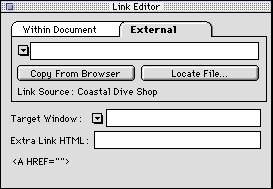
3 Click External Link. The Link Destination dialog box provides several options for creating external links: entering an address, copying the address from a Web page, or locating an address on your hard drive or network.
Entering an address
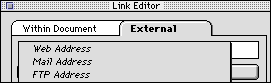
To enter an address, click the pop-up menu next the to address field. Choose one of the options shown below, then type the Link Destination address. This pop-up menu also stores the last 40 URLs you linked to.
Copying the address from the current Web page
To link to the address of the Web page currently open in your preferred browser, click Copy From Browser. If multiple Web pages are open, BeyondPress will copy the address of the front-most page.
Note: Some older browsers will not allow you to copy the address.
Locating an address on your hard drive or network
To link to the URL of a Web page that is currently on your hard drive or network, click Locate File. You have two options for locating files:
* Locate a file that is in one of your URL/Association Folders specified in the Linking Preferences dialog box. (The file can be in a subfolder within a URL/Association Folder.) See Setting Site Preferences.
* Locate a file that is in a mock-up of your Web site on your hard drive or network. To do this, you must have Create Relative URLs checked in Export Preferences and completed a preliminary export of the Web page.
The path and name of the file you select is automatically added to the end of the URL for that folder. The complete Link Destination URL is shown in the field in the Link Destination dialog box.
4 If you are using Frames and you want the linked document to appear in another frame or browser window you will type the frame NAME into the target window or select a window destination from the pop up menu.
For more information on Target windows and Frames go to the section on The Link Target Window and Extra HTML
5 Click OK.
To change or delete an external link
To change or delete a link, highlight the Link Source text in the document and click Link  . An alert gives you the choice to Edit or Delete the link. You can also edit or delete external links in Image Settings.
 Creating a Link Within a Web Page | The Link Target Window and Extra HTML
SELECT A TOPIC:
Creating Hyperlinks and Image Maps
Creating a Link Within a Web Page
Creating an External Link