
SELECT A BOOK:


SELECT A CHAPTER:
Setting Media Preferences
1 Open Media Preferences (click Preferences  on the Document Content palette, then click Image) and select Media. For each multimedia file type, there are File Type, Suffix,and Export As edit fields.
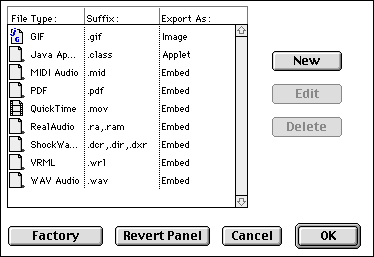
2 To enter a new file, click New. The Foreign Object Identifier dialog box will appear.
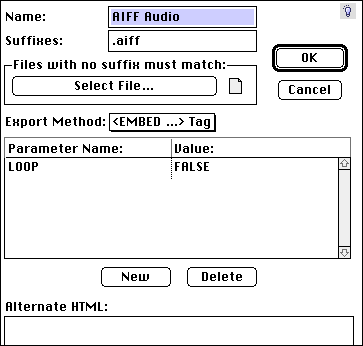
3 Choose a name for the media file and designate a suffix. By clicking Select File, you can identify a media file with a suffix to match the one you're creating.
4 Choose an Export Method: Embed, Applet, Image, Raw HTML, or Text.
* Use Embed for most media files requiring a browser plug-in.
* Applet is the export method for Java applets
* Image is the export method for animated GIFs, PNG files, and TIFF or other image formats.
* Raw HTML and Text are special export methods. Raw HTML copies the source files to HTML, while Text also copies the source files to HTML, with any special typographic characters (such as >) mapped to HTML.
5 Establish default Parameters and Values for your file, if appropriate.
6 Click the close box to close the Foreign Object Identifier dialog box and save changes.
To set preferences for individual files, switch to Authoring Mode by clicking Authoring on the Document Content palette. Select the multimedia file item box and click the Attributes Inspector  .
.
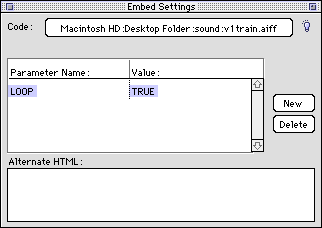
1 To set new parameters for the file, click new and add the desired changes.
2 Click the close box to close the Inspector.
3 Click Conversion on the Document Content palette to return to Conversion Mode.
 Adding Multimedia to Web Pages | Multimedia Sources on the Web
SELECT A TOPIC:
Adding Multimedia to Web Pages
Setting Media Preferences