
SELECT A BOOK:


SELECT A CHAPTER:
Setting Preferences for Exporting
The Export Preferences dialog box includes options for previewing and exporting Web pages.
1 Open the Export Preferences dialog box (click Preferences  on the Document Content palette, then click Export).
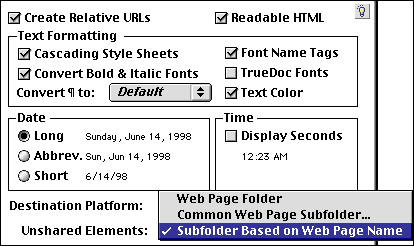
2 Change any of the settings, which are defined as follows:
* Destination Platform pop-up menu: Ensures that suggested file names and file extensions comply with the following platforms' standards (Macintosh, DOS/Windows, or UNIX).
* Convert Bold & Italic Fonts: Applies bold and/or italic HTML tags to text that is in the bold and/or italic instance of a font.
Note: Some fonts are incorrectly marked as bold and/or italic by the manufacturer. If your exported text reflects incorrect bold and/or italic formatting, uncheck Convert Bold & Italic Fonts.
* Create Relative URLs: Assumes that links to other Web pages on your hard drive or network represent pages on your Web site, and therefore creates relative rather than direct URLs. See Creating Hyperlinks and Image Maps for more information
* Convert Text Color: Converts colored text (nonblack text) to a similar color. The color of black text is controlled by the Text Color option in Web Page Preferences.
* Readable HTML: Inserts paragraph returns in HTML text, which makes it easier to edit manually.
* Date and Time: Specifies the format any exported Date and Time Master Elements will use. See Adding a Date and Time Stamp for more information.
3 To specify a location for other images other than your shared images, choose an option from the Unshared Elements pop-up menu:
* Web Page Folder saves images in the same folder as the Web page.
* Common Web Page Subfolder creates one folder for all the images exported from all the pages in the document that are exported to the same folder. Use the Common Subfolder dialog box to name the folder.
* Subfolder Based on Web Page File Name saves the images for each exported page in a different folder within the Web page folder.
The folder name depends on the specified Destination platform. If you choose Macintosh or UNIX, the subfolder will have the same name as the Web page folder, but without the ".html" suffix. If you choose Windows, the subdirectory will have the first six characters of the Web page name with a "F" suffix.
5 Click the Image icon to switch to the Image Preferences panel. Confirm the Image Preferences that affect exported files: Reimport High Res Images/Revert After Export.
6 Click OK to close BeyondPress Preferences and save changes.
 Previewing and Exporting Introduction | Exporting a Web Page
SELECT A TOPIC:
Previewing and Exporting Introduction
Setting Preferences for Exporting