
SELECT A BOOK:


SELECT A CHAPTER:
Adding a Date and Time Stamp
The Date and Time Master Elements reflect the date and time you export a Web page according to the information in your Mac OS Date & Time Control Panel. You specify the format of the Date and Time in Export Preferences, then add them to a Web page using the Document Content palette or Web Page Preferences.
To specify the format of the Date and Time
1 Open Export Preferences (click Preferences  on the Document Content palette, then click Export).
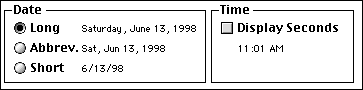
2 In the Date area, click one of the illustrated options to specify the format of the date.
3 In the Time area, check Display Seconds if you want the export time to include seconds.
4 Click OK to close BeyondPress Preferences and save changes.
To add the Date and Time to a Web page
You have three options for adding the Date and Time Master Elements to a Web page.
* Choose them as Headers or Footers in Web Page Preferences.
* Drag them into a Web page using the Date  and Time
  icons on the HTML pane of the Elements palette.
* Embed them in another Master/Custom Element you add to the Content List.
 Adding Headers, Footers, and Meta Tags | Overriding Web Page Preferences
SELECT A TOPIC:
Adding Headers, Footers, and Meta Tags
Adding a Date and Time Stamp