
SELECT A BOOK:


SELECT A CHAPTER:
Setting Image Preferences, Part I
You can set preferences for the file format and color palette of all your images with Images Preferences, then you can override the preferences for each image using the Attributes Inspector.
Size or crop images for Web pages in QuarkXPress by adjusting the size of the Picture Box.
When you export a document, BeyondPress creates GIF and/or JPEG image files from the picture (screen) previews of TIFF, PICT, and EPS files in QuarkXPress. BeyondPress provides various options for exporting these images.
1 Open the Site Preferences dialog box (click Preferences  on the Document Content palette, then click Site).
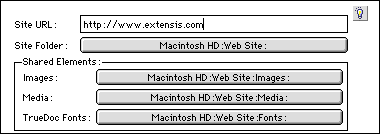
2 To consolidate frequently used images, click on the Images button and specify a folder containing your images. This is your Shared Images folder.
Note: If you name a background image/tile in Web Page Preferences, the image file is automatically exported to the Images folder designated in Site Preferences. You add individual images to the Shared Images folder by checking Share This Image in Image Settings of the Attributes Inspector.
3 To specify a location for other images, choose an option from the Unshared Images pop-up menu in Export Preferences:

* Web Page Folder saves images in the same folder as the Web page.
* Common Web Page Subfolder creates one folder for all the images exported from all the Web pages in the document that are exported to the same folder. Use the Common Subfolder dialog box to name the folder.
* Subfolder Based on Web Page Name saves the images for each exported Web page in a different folder within the Web page folder.
The folder name depends on the specified Destination platform, which reflects the type of server you are sending your HTML files to. If you choose Macintosh or UNIX, the subfolder will have the same name as the Web page folder, but without the ".html" suffix. If you choose Windows, the subdirectory will have the first six characters of the Web page name with a "F" suffix.
 Adding Images to Web Pages | Setting Image Preferences, Part II
SELECT A TOPIC:
Setting Image Preferences, Part I
Setting Image Preferences, Part II
Specifying Image Format and Color Palettes
Changing the Transparency of GIFs