
SELECT A BOOK:


SELECT A CHAPTER:
Setting Image Preferences, Part II
4 Click the Image icon in BeyondPress Preferences to switch to the Image Preferences panel.
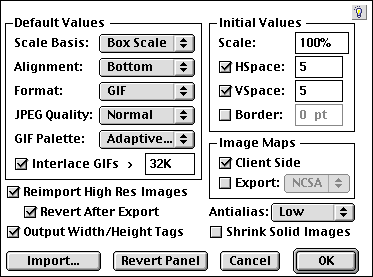
5 To reimport high-resolution pictures with previews of the highest possible resolution, check Reimport High Res Images. To restore the standard previews after export, check Revert After Export. If you want the the highest quality image, and if image file size is not an issue, check Reimport High Res Images.
Note: You may use low-resolution picture previews in QuarkXPress documents to decrease document file size and increase redraw speed. However, since BeyondPress uses these previews to generate exported images, you may be starting with undesirable low-resolution previews.
6 To antialias text and lines in all exported images, choose Low, Medium, or High from the Antialias pop-up menu.
Note: Both reimporting high-resolution images and antialiasing produce higher quality images that display better. But they also take longer to export, require more RAM to export, and consume more disk space.
7 To automatically add WIDTH/HEIGHT tags to images, check Output Width/Height tags.
Note: If your images have WIDTH and HEIGHT tags in the HTML text, the browser knows how to flow the surrounding text before it downloads the entire image. In general, you should leave this option checked. However, if you plan to replace the images BeyondPress generates with your own images, and you don't know the dimensions of those images, uncheck Output Width/Height tags.
8 If you check Output Width/Height tags, you have the option to check Shrink Solid Images. This feature compresses one-color images down to one pixel, which download very quickly. The browser uses the color from the pixel and the WIDTH/HEIGHT tags to draw the image.
9 Click OK to close BeyondPress Preferences and save changes.
 Setting Image Preferences, Part I | Specifying Image Format and Color Palette
SELECT A TOPIC:
Setting Image Preferences, Part I
Setting Image Preferences, Part II
Specifying Image Format and Color Palettes
Changing the Transparency of GIFs