
SELECT A BOOK:


SELECT A CHAPTER:
Changing the Transparency of GIFs
The Bucket and Eyedropper tools in the Image Settings dialog box of the Attributes Inspector let you control the transparency of GIF files. Browsers display the background color or image through the transparent portions of a GIF image. You can use transparency to create the appearance of a round or polygonal image.
1 Click on the Attributes Inspector  in the Document Content palette and select the image you want to modify. The Image Settings dialog box will appear.
2 If necessary, change the Format to GIF so you can modify the background.
3 To make all the pixels of a specific color transparent, use the Eyedropper tool. Click a pixel to make all pixels in that color transparent. Click the Eyedropper tool again to change transparent pixels back to opaque pixels.
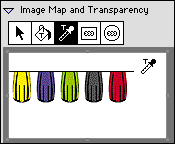
Or, to make contiguous pixels of a single color transparent, use the Bucket tool. Click a pixel to make the adjacent area transparent. Click the Bucket tool again to change a transparent area back to opaque.
Note: The Eyedropper cursor includes a small "T" when it is above a pixel that is not transparent. Clicking this pixel will make that color transparent. The cursor includes a small "X" when it is over a pixel that is transparent. Clicking on the pixel will make it opaque.
5 Click the close box to close Image Settings.
Note: If a picture box has a background of None in the QuarkXPress document, BeyondPress makes white pixels in the image transparent by default.
 Specifying Image Format and Color Palette | Specifying HTML Tags and Replacement Text
SELECT A TOPIC:
Setting Image Preferences, Part I
Setting Image Preferences, Part II
Specifying Image Format and Color Palettes
Changing the Transparency of GIFs