
SELECT A BOOK:


Content List Icons
Authoring Mode
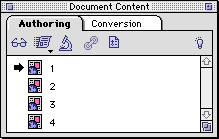
Each page in QuarkXPress appears in the Document Content palette as a separate page icon, named 1, 2, 3, 4, etc. To rename page names, click its icon and enter a new name. 
Conversion Mode
Once you've established a Document Content List, by clicking List Document  , the following icons appear in the palette, corresponding to each element of your QuarkXPress document. Depending on the element, you'll be given several options to Export or Modify.
| Element icon | Meaning | HTML Options | |
 Web page Web page | Contains elements  | Export, Export As, Modify  | |
 Text Chain Text Chain | Text from linked boxes  | HTML pop-up menu  | |
 Text Range Text Range | Text isolated from a chain  | HTML pop-up menu  | |
 Text Segment Text Segment | Text separated from a chain  | HTML pop-up menu  | |
 Anchored Text Anchored Text | Text box anchored in text  | HTML pop-up menu  | |
 Table Table | Text formatted as a Table  | Modify, As Text  | |
 List List | Text formatted as a List  | Modify, As Text  | |
 Images Images | Image  | Modify, displays Image Settings  | |
 Anchored Image Anchored Image | Image anchored in text | Modify, displays Image Settings  | |
 Group Image Group Image | A group of QuarkXPress items | Modify, displays, Image Settings | |
For text items, the HTML pop-up menu gives you the following options for exporting:
Suppress Output, HTML Source, As Image, As Table, As List, Bold, Citation, Emphasis, Font Size1-7, Headline1-6, Italic, Quote, Strong, Typewriter.


SELECT A CHAPTER:
SELECT A TOPIC:
Document Content Palette: Introduction
Content List Icons