
SELECT A BOOK:


Document Content Palette: Introduction
Open the Document Content palette either by selecting Extensis>BeyondPress>Show Document Content or by pressing Command-Option-C (Macintosh) or Control-Alt-C (Windows).
In Authoring Mode, the Document Content palette displays each page in the document as an icon; each icon represents a separate Web page. Double- click a page icon to navigate to that page in QuarkXPress.
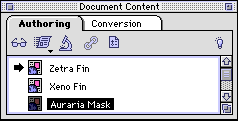
From this mode you can:
- Create Web pages within QuarkXPress, preserving layout and typography.
- Add images, text, and multimedia elements.
- Establish default preferences for formatting and exporting.
- Modify and format individual page elements using the Attributes Inspector.
- Create hyperlinks and image maps.
-
Preview your page in a Web browser by clicking Preview
 .
.
- Export all text and image files into Web files, with appropriate naming conventions (.htm, .html, .jpeg, .gif).
In Conversion Mode, you can create a Content List that displays the text, image, multimedia, and HTML elements of a QuarkXPress document as icons. On the Content List each Web page is indicated by a folder icon.
To the right of each element, in the HTML column, the "Modify" button or text-style pop-up menu lets you manipulate and prepare elements of your QuarkXPress document for conversion to Web formats.
You can resize the palette by dragging the lower right corner. You can resize the two columns of the Conversion Mode by dragging the dotted vertical line.
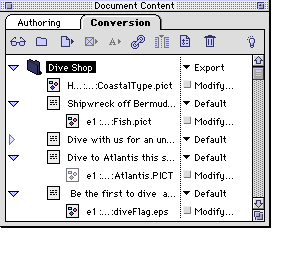
From this mode you can:
- Preserve the integrity of QuarkXPress documents while formatting them for the Web.
- Position, edit, format, and group images and text.
- Automatically anchor images in text.
- Set default Preferences for formatting and exporting.
- Convert text, including stylized headlines and logos, into antialiased images. Text may also be converted to an HTML table or list.
- Create HTML tables from QuarkXPress-generated charts and forms.
- Review your work as it will appear on the Web in a preferred browser.
- Export all text and image files into Web-ready documents.


SELECT A CHAPTER:
SELECT A TOPIC:
Document Content Palette: Introduction