
SELECT A BOOK:


SELECT A CHAPTER:
Creating Custom and Master HTML Elements
There are seven default Master Elements in the HTML pane of the Elements Palette: Horizontal Rule <HR>, Line Break <BR>, Paragraph Return <P>, Space, Date, Time, and Margin Reset -- <BR Clear=All>.
You can add these elements to Web pages by dragging them onto your pages. You can also create new Master Elements to use in your pages, or Custom HTML Elements for one-time use in individual pages.
Click  to import Custom Elements that you've created for other pages.
To define new Master Elements
1 Open the Elements palette by pressing Command-Control-S.
The HTML pane lists the default Master Elements and any new elements that you define. The default Master Elements can't be edited or deleted.
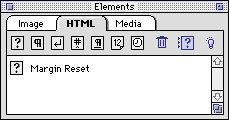
2 Drag the Custom icon  into the Master Elements list. The Edit Master Element dialog box will appear.
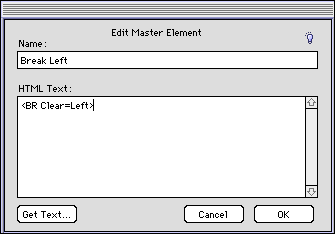
3 Combine the following techniques to define the new Master Element in the HTML Text box:
* Enter up to 32,000 characters of text, or use the Get Text button to import a text file.
* Enter the name of a Master Element in {brackets} to embed it in the new Custom Element.
Note: The new Master Element you're creating will reference the Master Elements in brackets. If you edit a Master Element, the change will carry through all Master Elements that reference it. If you want brackets inside your Master Element text, type a backslash before the brackets: \{ \}. Otherwise, BeyondPress will interpret the brackets as references to other Master Elements.
4 Click OK to close Edit Master Element and save changes.
To create new Custom Elements
1 Drag the the Custom icon  into your Web page where you want to embed the HTML item. The Edit Custom Element dialog box will appear.
2 Follow step 3 above.
3 Click OK.
 Adding Custom HTML Items | Editing or Deleting Master Elements
SELECT A TOPIC:
Creating Custom and Master HTML Elements
Editing or Deleting Master Elements