
SELECT A BOOK:


SELECT A CHAPTER:
Using Master and Custom Elements
Master and Custom Elements can be dragged into a Web page using the row of icons on the HTML pane of the Elements palette.
To add new Master Elements
The row of icons on the HTML pane of the Elements palette, except the Custom icon  , represent the default Master Elements. To add one to a Web page in, drag its icon into position on the page.
Element Icon
| Paragraph return (Return) |  |
| Line break (Shift-Return) |  |
| Space (Space Bar) |  |
| Horizontal Rule |  |
| Date |  |
| Time |  |
| Break text around a photo or image |  |
To add Master or Custom Elements to Web pages
Drag the Custom icon  into position on the Web page. Use the Edit Custom Element dialog box to:
* Choose an option from the Master Element pop-up menu, which lists the elements defined in the HTML pane of the Elements palette.
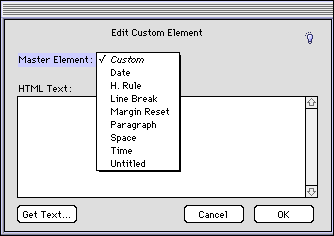
* Create a Custom Element by entering text into the HTML Text field or clicking the Get Text button to import a text file.
You can also drag a Master Element from the Master Element list (in the HTML pane of the Elements palette) into a document.
 Editing or Deleting Master Elements | Using Master Elements as Headers, Footers, and Meta Tags
SELECT A TOPIC:
Creating Custom and Master HTML Elements
Editing or Deleting Master Elements
Using Master and Custom Elements