
SELECT A BOOK:


SELECT A CHAPTER:
Document Content Palette: Authoring Mode
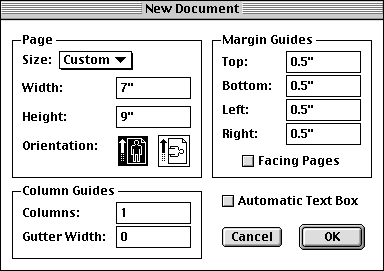
To design a Web page, create a new document in QuarkXPress. We recommend a page size of 7 inches wide by 9 inches high, with Margin Guides set at 0 inches, and Automatic Text Box unchecked. Seven inches is a width that a majority of viewers' browsers can accommodate.
SELECT A TOPIC:
Document Content Palette: Authoring Mode
Setting DHTML Layout Preferences
We also recommend that you change the default measurement in QuarkXPress General Preferences (Edit: Preferences: General), to points (same as pixels), and Points/Inch to 72.

Press Command+Option+C(Macintosh) or Control+Alt+C(Windows) to display the Document Content palette (Extensis>BeyondPress>Show Document Content). Select Authoring Mode. Each page you've created in QuarkXPress appears in the Document Content palette as a separate page icon, named 1, 2, 3, 4, etc.
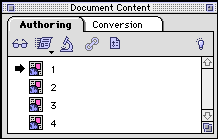
To rename page names, click on the name next to the icon and enter a new name.
To create Web pages, place your text, image, and multimedia objects on your QuarkXPress page. BeyondPress will approximate your layout using automatic table creation.
To set formatting for all your pages, click on Preferences  and choose from the items listed in each pane.
To override formatting for individual elements or pages, open the Attributes Inspector by clicking the Inspector  on the Document Content palette. As you select elements on the QuarkXPress page, such as images, text boxes, Java applets, etc., the Attributes Inspector will display dialog boxes that provide several options for formatting and modification.
For more information about the Inspector, choose the Layout, Text, Image, or Multimedia chapters in the pop-up menu above (under SELECT A CHAPTER).
To add hypertext links to pages, selected text to be linked and click  , or use the Image Inspector's linking tools.
To preview your pages in a selected Web browser application, click  .
.
To export a page to HTML, click 
For more information about Links and Previewing and Exporting, choose one of the topics below:

