
SELECT A BOOK:


SELECT A CHAPTER:
Adding Headers, Footers, and Meta Tags
Headers and footers repeat information -- such as logos and copyright information -- at the top and bottom of a Web page. The header, footer, and Meta tag features of BeyondPress allow you to add these elements automatically, without building them into your pages each time.
Meta tags embed information in the <HEAD> tag of a Web page. The Meta tag information is used by the server and search engines and is not displayed in the Web page.
In BeyondPress, headers, footers, and Meta tags consist of default Master Elements or Master Elements you create.
1 Open Web Page Preferences (click Preferences  on the Document Content palette, then click Web Page.)
2 Choose from the list of Master Elements in the Meta tags, Header, and Footer pop-up menus.
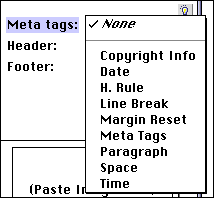
3 If you need a different Master Element, open the HTML pane of the Elements palette and create it. (See Creating Master Elements.) Then switch back to Web Page Preferences to choose it from one of the pop-up menus.
4 Click OK to close BeyondPress Preferences and save changes.
Note: Headers and footers are a good place to use Date and Time Master Elements, described on the next page.
To override Web Page Preferences for individual pages:
1 Open the Attributes Inspector  and click on a non-item portion (or the pasteboard) of the Web page you want to edit. The settings apply to the page whose page number is shown in the lower left corner of the document window.
2 In the Web Page Settings dialog box, leave Use Defaults unchecked.
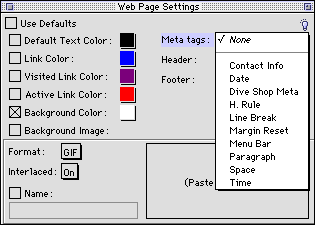
3 Choose the desired Meta tag, header, or footer. The changes you make will be saved for that page.


SELECT A TOPIC:
Document Content Palette: Authoring Mode
Setting DHTML Layout Preferences
Adding Headers, Footers, and Meta Tags