
SELECT A BOOK:


SELECT A CHAPTER:
Background Colors and Images
Web pages can have a background color and/or a background image. If you choose both, the color displays while the image is downloading. In general, background images should be small files that will download quickly. Remember, larger images take longer to download and should be avoided.
1 To specify a background image, you need to copy an image to the Clipboard. To use an image in the QuarkXPress document, select the QuarkXPress Content tool, select the image, and press Command-C. You can also use a screen capture application or an image-editing application to copy an image to the Clipboard.
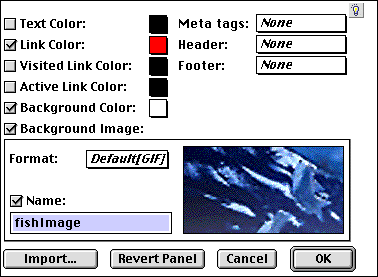
2 Open Web Page Preferences (click Preferences  on the Document Content palette, then click Web Page).
3 To specify a background color, check Background Color. Click the color button to access an Apple Color Picker, or Option-click the color button to choose from 256 colors.
4 To paste a background image from the Clipboard into the Image/Tile area, press Command-V.
5 Choose a Format for the background image. In general, choose GIF for text or line art and choose JPEG for a photograph or texture. If you choose GIF, you can turn Interlaced On or Off; if you choose JPEG, you can choose an image quality.
6 Check Name to enter a file name for the background Image/Tile. If you name an Image/Tile, the image file is automatically stored in the Shared Images folder (Site Preferences) when you export the page to HTML. If you only plan to use an Image/Tile on one page, you don't need to name it.
7 Click OK to close BeyondPress Preferences and save changes.
To override Web Page Preferences for individual pages:
1 Open the Attributes Inspector  and click on a non-item portion (or the pasteboard) of the Web page you want to edit. The settings apply to the page whose page number is shown in the lower left corner of the document window.
2 In the Web Page Settings dialog box, leave Use Defaults unchecked.
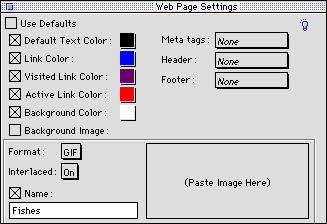
3 Make the desired changes and close the Web Page Settings dialog box. The changes you make will be saved for that page.
 Setting Layout Preferences | Adding Headers, Footers, and Meta Tags
SELECT A TOPIC:
Document Content Palette: Authoring Mode
Setting DHTML Layout Preferences
Background Colors and Images