
SELECT A BOOK:


SELECT A CHAPTER:
Anchoring Text and Images
If you have images and text associated with a QuarkXPress document or story, but not anchored in the text, you can anchor them automatically by checking Auto Anchor Images in Application Preferences, or by manually anchoring each image.
To manually anchor images:
1 Drag the Text Chain  or Image
  you want to anchor over the Text Chain
  containing the body of the story.
2 The Anchor Item in Text Chain dialog box prompts you to specify a place in the story to anchor the image or text.
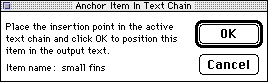
3 Place the text insertion point where you want to anchor the box, then click OK.
You may want to anchor boxes at the beginning or end of paragraphs, or align them to the left or right, so they don't disrupt line spacing. After you've anchored a box, you might want to insert a Paragraph Return  , Line Break
  , or
, or  before and after it in the Content List. You can change the format of anchored images and anchored text using the options in the HTML column of the Content List.
Anchoring images with a keyboard command
To quickly anchor an image, select the image in the document and press F14. The image is added to the Content List and the Anchor Image In Text dialog box is displayed. If Auto Anchor images is enabled, BeyondPress will position the cursor in the text at the approximate image location.
Viewing anchored boxes
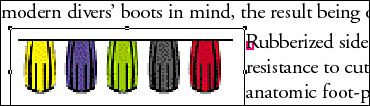
To see the location of boxes you anchor in the QuarkXPress document, check Show Hidden Text in Application Preferences. The location in the document text is marked with a small, non-printing box framed in magenta.


SELECT A TOPIC:
Setting List Document Preferences
Anchoring Text and Images