
SELECT A BOOK:


SELECT A CHAPTER:
Setting List Document Preferences
The List Document settings in Application Preferences control how the List Document button  on the Document Content palette works.
To edit Application Preferences:
1 Open Application Preferences (click Preferences  on the Document Content palette, then click Application).
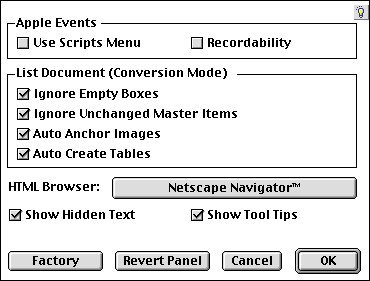
2 Check Ignore Empty Boxes to prevent the List Document button from listing empty picture or text boxes.
3 Check Ignore Unchanged Master Items to prevent the List Document button from listing items on document pages that originated from a master page and have not been edited manually.
4 Check Auto Anchor Images to allow BeyondPress to automatically place images in their approximate position in the text chain. Uncheck this item if you do not want overlapping images anchored in the text.
5 By checking Auto Create Tables, BeyondPress creates text ranges and sets them to "As Table" when it reads a range of tab delimited text which appears to be a table.
6. By checking Show Hidden Text, you will be able to see the indicators that BeyondPress uses when creating links, text segments, or anchors. These will not print as part of your QuarkXPress document.
7. By checking Show Tool Tips, you will be able to identify each button in the palette by passing the cursor over it and reading the pop up description.
6 Click OK to close BeyondPress Preferences and save changes.
 Converting QuarkXPress Documents to Web Pages: Introduction | Creating a Content List
SELECT A TOPIC:
Setting List Document Preferences