
SELECT A BOOK:


SELECT A CHAPTER:
Setting Site Preferences
If you create links to Web pages that are stored on your hard drive or network, BeyondPress provides a shortcut to typing in the entire address.
First, you identify the folders that contain Web pages (or that contain folders that contain Web pages). Then you enter the URL for where you intend to post the Web pages.
This association between a folder on your hard drive or network and a specific URL is called a "Folder/URL Association." See Creating an External Link for information about how Folder/URL Associations are accessed when you're creating links.
To create a Folder/URL Association:
1 Open the Site Preferences dialog box (click Preferences  on the Document Content palette, then click Site).
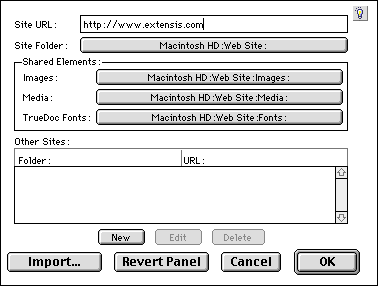
In this example, any file in the "Web Site" folder on the Macintosh HD will be linked to http://www.extensis.com/filename.HTML.
2 Click the Site Folder edit field to display a directory dialog box.
3 Locate and select a folder that contains your Web pages. The Site Folder field changes to reflect the path to the folder on your hard drive or network.
4 In the URL field, enter the URL for the Web pages in that folder. BeyondPress will associate the contents of the folder with this URL.
5 Select the folder that contains your Shared Elements - images, media files, and TrueDoc font files (PFRs). You can also create folder/URL associations for sites that you frequently link to in Other Sites.
In the above example, the ftp://ftp.extensis.com/pub/ site is established.
6 Click OK to close the BeyondPress Preferences and save changes.
 Creating Hyperlinks and Image Maps | Creating a Link Within a Web Page
SELECT A TOPIC:
Creating Hyperlinks and Image Maps
Setting Site Preferences
Creating a Link Within a Web Page