
SELECT A BOOK:


SELECT A CHAPTER:
Creating a Link Within a Web Page
Hyperlinks within a Web page or group of Web pages let you create jumps to different areas -- for example, from an image to a story, from a word to a definition, or from a table of contents to a story.
To create a link within a Web page
1 In the QuarkXPress document, highlight the text or select the image you want to link from (the Link Source). If the Link Source is text, it must be contained within one paragraph. It's usually best to link only a few key words.
2 Click Link  on the Document Content palette or press F15 on an Apple extended keyboard. If the Link Source is text, the Link Destination dialog box displays the text you're linking in the lower left corner.
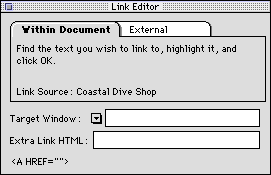
3 Click Within Document. Find the link destination text and highlight it (you can use the Page Grabber Hand, the scroll bars, or the Go to Page command in the Page menu).
4 If you are using Frames and you want the linked document to appear in another frame or browser window you will type the frame NAME into the target window or select a window destination from the pop up menu.
For more information on Target windows and Frames go to the section on The Link Target Window and Extra HTML
5 Click OK.
4 Click OK.
Note: If you create an internal link to text in a document that is exported as a separate Web page, BeyondPress creates a relative or direct link to the other page (assuming that you have done a preliminary export of both pages). BeyondPress determines whether to make a relative or direct link based on your Create Relative URLs setting in Export Preferences. See Creating
SELECT A TOPIC:
Creating Hyperlinks and Image Maps
Creating a Link Within a Web Page