
SELECT A BOOK:


SELECT A CHAPTER:
Creating an Image Map
Image Maps are images with multiple external links. First, specify the format for Image Maps in Image Preferences, then use the Image Settings dialog box to create an Image Map.
To specify the format of Image Maps
1 Open the Image Preferences dialog box (click Preferences  on the Document Content palette, then click Image). The Image Maps settings are in the lower right.
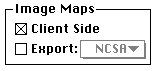
2 Check Client Side to create Image Maps inline in the HTML output.
3 Find out from your Web server administrator if you have a CGI on your Web server. If you do, find out whether the format is NCSA or CERN.
If you have a CGI on your Web server, check Export and choose the appropriate format: NCSA or CERN. If you do not have CGI, you can only export Client Side Image Maps.
4 Click OK to close BeyondPress Preferences and save changes.
To create an Image Map
1 Select an Image  in the Content List and click Modify in the HTML column.
Tip: To see the image better, draw out the window at the lower right corner of the Image Settings dialog box.
2 If you created a link for the image from the Document Content palette, the link is displayed in the image's bounding box. This link is used if readers click on parts of the image that aren't mapped. To edit this link, double-click on it with the Pointer tool  .
.
Remember, if you created a linked image without a border designation, a default border of 1 will be applied (often in blue). To eliminate this border, specify border=0 in Image Preferences or the Image Settings box.
3 Select the Linking tool  (the last tool on the tool bar at left). If Client Side and Export are unchecked in Image Preferences, the Linking tool is unavailable.
4 Click and drag to select an area on the image for a link source.
5 Use the standard Link Destination dialog box to specify an External Link for that part of the image. After you click OK in the Link Destination dialog box, the link is outlined, numbered, and named according to the URL.
Note: You cannot create Internal Links from an Image Map.
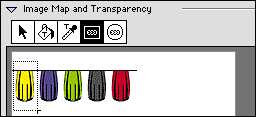
6 Create all the links you want, then close the Image Settings dialog box.


SELECT A TOPIC:
Creating Hyperlinks and Image Maps
Creating a Link Within a Web Page
The Link Target Window and Extra HTML
Creating an Image Map