
SELECT A BOOK:


SELECT A CHAPTER:
Editing or Deleting Master Elements
1 Open the HTML pane of the Elements palette [Extensis>BeyondPress>Show Shared Elements, or pressing Command-Control-S (Macintosh), or Control-Shift-S (Windows) then click on the HTML tab].
2 You can edit or delete Master Elements that you create.
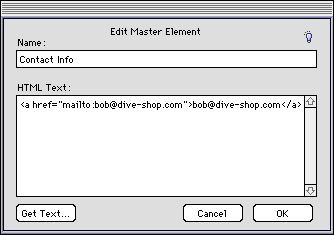
* To edit a selected Master Element in the Master Elements list, Command-click on its icon. Use the Edit Master Element dialog box to define the new element. If you've added the Master Element to the Document Content List, it will automatically reflect your edits.
* To delete a Master Element, select the element in the Master Elements list and click  . To delete one instance of a Master Element, select it in the Document Content palette and click
  . If the deleted Master Element is used in a document's Content List, the element in the Content List is converted to a Custom Element so the exported Web page is not affected.
Note: If the deleted Master Element is embedded in other Master Elements, you will have to remove those references manually.
3 Click OK to close Edit Master Elements and save changes.
 Creating Master and Custom Elements | Using Master and Custom Elements
SELECT A TOPIC:
Creating Master and Custom Elements
Editing or Deleting Master Elements
Using Master and Custom Elements