
SELECT A BOOK:


SELECT A CHAPTER:
Using Master Elements as Headers, Footers, or Meta Tags
Headers, footers, and Meta tags are created from the Master Elements you specify in the HTML pane of the Element Palette. They are added to all pages through Web Page Preferences.
Web Page Preferences
1 Open Web Page Preferences (click Preferences  on the Document Content palette, then click Web Page).
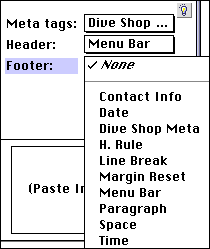
2 Use the header, footer, and meta tags pop-up menus to choose from all the Master Elements saved with current preferences.
3 Click OK to close Web Page Preferences and save changes.
Note: See Adding Headers, Footers, and Meta Tags and Adding a Date and Time Stamp for more information.
To override Web Page Preferences to add headers, footers, and Meta tags to individual pages:
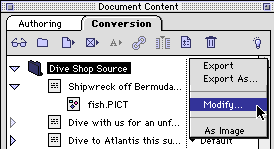
1 Select the Web Page folder in the Content List. .
2 Click on Export in the HTML column and choose Modify.
3 The Web Page Settings dialog box will appear. Choose a Master Element.
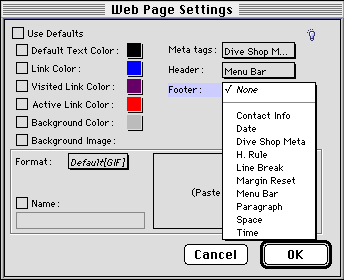
4 Click OK to close Web Page Settings and save changes.


SELECT A TOPIC:
Creating Master and Custom Elements
Editing or Deleting Master Elements
Using Master and Custom Elements
Modifying Master and Custom Elements
Using Master Elements as Header, Footer, and Meta Tags