
SELECT A BOOK:


SELECT A CHAPTER:
Specifying Default Formatting for Tables
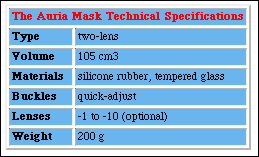
Table Preferences lets you customize table formatting. The alignment of text within the cell reflects the alignment of the tab stop in QuarkXPress. If you don't change any of the default Table Preferences, text exported as a table is formatted according to the browser's preferences.
1 Open Table Preferences (click Preferences  on the Document Content palette, then click Table). Set default settings.
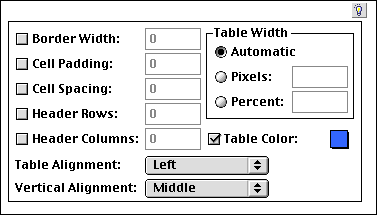
* Border Width is the width (in pixels) of the frame around each cell and the entire table.
* Cell Padding is the amount of space (in pixels) surrounding the data in a table cell.
* Cell Spacing is the amount of space (in pixels) between table cells.
* Header Rows is the number of rows exported as "header" cells rather than "data" cells.
* Header Columns is the number of columns exported as "header" cells rather than "data" cells.
Note: The definition of Header Rows and Header Columns is browser dependent. Netscape Navigator, for example, applies bold to Header Rows and Header Columns.
2 To control the width of the table in the browser, click an option in the Table Width area:
* The Automatic option sizes the table according to the browser's preferences.
* The Pixels option sizes the table according to the pixel value you enter in the field.
* The Percent option sizes the table as a percentage of the width of the browser window.
3 To change the alignment of the table in relation to surrounding text, choose an option from the Table Alignment pop-up menu. If you choose Standard, tables align according to the browser's preferences.
4 To control the vertical alignment of items within a table cell, choose an option from the Vertical Alignment pop-up menu. This group of settings will allow you to align items vertically in a cell regardless of the size of items in adjacent cells.
6 Click OK to close BeyondPress Preferences and save changes.
To override default Table Preferences for individual tables, click on Modify to the right of the table icon in the Content List. A dialog box will appear. Make the desired changes and click OK to save changes.


SELECT A TOPIC:
Specifying Default Formatting for Tables
Specifying Default Formatting for Lists, Part I
Specifying Default Formatting for Lists, Part II