
SELECT A BOOK:


SELECT A CHAPTER:
Converting Text to a List, Part II
Converting a range of text to a list
1 Select any text element in the Content List and choose As List from the HTML pop-up menu.
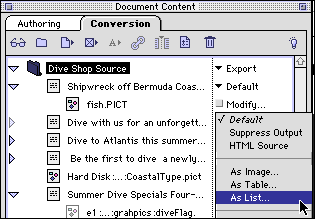
2 List Settings opens so you can override List Preferences for this list. To change any of the settings, uncheck Use Defaults.
3 Click OK to close List Settings.
4 To preview the List, select it in the Content List and click Preview  .
.
Note: You may want to isolate a range of text to format it as a list. To do so, highlight the text in the QuarkXPress document. Click Add Text  . If the text box wasn't already in the Content List, the entire contents of the box is listed as a Text Chain
  . The range of text you highlighted is displayed as a Text Range
  under the parent Text Chain.
Best results are achieved by selecting entire paragraphs.


SELECT A TOPIC:
Specifying Default Formatting for Tables
Specifying Default Formatting for Lists, Part I
Specifying Default Formatting for Lists, Part II
Converting Text to a List, Part I
Converting Text to a List, Part II