
SELECT A BOOK:


SELECT A CHAPTER:
Creating Master Styles
BeyondPress provides a default list of HTML styles (Bold, Citation, Emphasis, Font Size 1-7, Headlines 1-6, Italic, Quote, Strong, and Typewriter). You can add your own HTML styles to this list. The HTML styles in the list are referred to as Master Styles.
This feature is for experienced HTML authors; Master Styles you create must comply with current HTML Specifications. If you need more information about the HTML language, go to:
* The NCSA Beginner's Guide to HTML, or
* W3C - The World Wide Web Consortium
To define new Master Styles:
1 Open Master Styles Preferences (click Preferences  on the Document Content palette, then click Styles).
The Master Styles scroll list displays the default Master Styles and any styles that you define. The default Master Styles can't be edited or deleted.
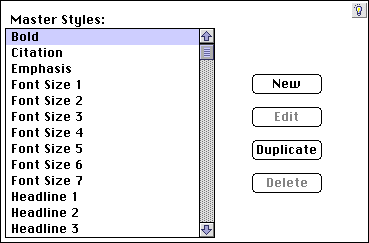
2 Click New. In the Edit Master Style dialog box, enter a name for the style in the Style Name field.
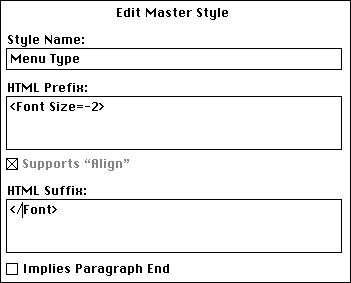
3 Enter the new style's prefix in the HTML Prefix field. For example, the "Bold" HTML style prefix is <B>, and the "Headline 1" prefix is <H1>.
4 HTML 3.0 allows styles to include paragraph alignment information (for example, <H1 Align="Right">). If you want the HTML prefix to include the paragraph alignment information from QuarkXPress, check Supports "Align."
5 Enter the new style's suffix in the HTML Suffix field. For example, the "Bold" HTML style suffix is </B>, and the "Headline 1" suffix is </H1>.
6 If the HTML Suffix implies that a paragraph is completed, check Implies Paragraph End. For example, the suffix </H1> implies a break between paragraphs, so you should check Implies Paragraph End. The suffix </B> does not imply a break between paragraphs, so you should not check Implies Paragraph End.
7 Click OK to close BeyondPress Preferences and save changes.


SELECT A TOPIC:
Cascading Style Sheets and Font Name Tags
Creating Master Styles