
SELECT A BOOK:


SELECT A CHAPTER:
Converting Text to an Image and Antialiasing
There are times when you'll want to convert text to an image to maintain typography and box background. Examples are:
* Stylized logos not saved as an image.
* Text in an unusual font that most users may not have installed in their systems.
* Text that is rotated, skewed, or flipped.
* Text that is scaled horizontally or vertically.
* Text that has significant kerning or tracking applied.
* Baseline-shifted text.
To convert text to an image:
1 Open the Attributes Inspector  on the Document Content palette.
2 Click on the text box containing the text you want to convert. Text Box Settings will open.
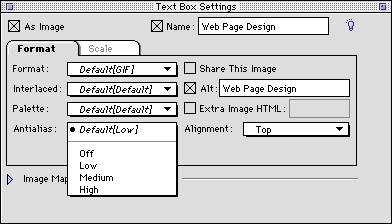
3 Click As Image. Specify the format -- GIF is recommended for type -- and choose Interlaced to let the image draw quickly in low resolution, then redraw in higher resolution.
You can also name the image file.
4 Click Share This Image if you plan to use the image on other pages, and add an Alt tag for those who browse the Web with images turned off.
5 Choose Antialiasing to ensure smooth lines around the edges of type. Higher levels of Antialiasing, while better in quality, are also higher in memory.
6 When you're finished formatting the image, close Text Box Settings.


SELECT A TOPIC:
Cascading Style Sheets and Font Name Tags
Editing and Using Master Styles
Converting Text to an Image and Antialiasing