
SELECT A BOOK:


SELECT A CHAPTER:
Link Text Attributes
To set colors for linked text for all pages:
1 Open Web Page Preferences (click Preferences  on the Document Content palette, then click Web Page).
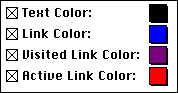
2 Text Color specifies the default color for all unlinked text in a Web page. Black text in a QuarkXPress document will be displayed by most browsers in the color specified by Text Color.
Note: If you check Text Color in Export Preferences, then the default Text Color only applies to black text in the QuarkXPress document. Colored text in the document will be converted to a similar color in the Web page.
3 Link Color specifies the color for link source text and the border of link source images.
4 Visited Link Color specifies the color for link source text and for the border of link source images that have already been selected.
5 Active Link Color specifies the color of a text or image link as it's being selected.
6 Click OK to close BeyondPress Preferences and save changes.
Note: For all four color options, checking the box will specify the color in the Web page. If the boxes are left unchecked, the browser will display default colors when viewing the Web page.
To choose a color:
1 Click the color button to access the Apple Color Picker, or
2 Option-click the color button to access the standard Mac OS 256-color palette.
To set colors for linked text for individual pages:
1 Open the Attributes Inspector by clicking the Inspector  . Click on a non-item portion of the page or the pasteboard to open Web Page Settings. The settings apply to the page whose page number is shown in the lower left corner of the document window.
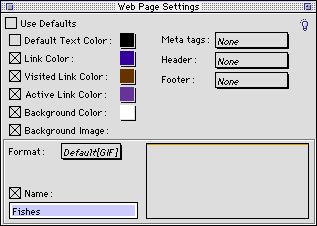
2 Make the desired changes and close the Web Page Settings.
 Mapping Font Sizes | Converting Text to an Image and Antialiasing
SELECT A TOPIC:
Cascading Style Sheets and Font Name Tags
Editing and Using Master Styles
Link Text Attributes