
SELECT A BOOK:


SELECT A CHAPTER:
Specifying Image Format and Color Palette
You can set preferences for the file format and color palette of exported image files, then you can override the preferences on an image-by-image basis.
To specify image file format and color palette preferences
1 Open the Image Preferences dialog box (click Preferences  on the Document Content palette, then click Image).
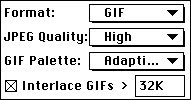
2 To specify the default file format for exported images, choose GIF or JPEG from the Format pop-up menu.
* Choose GIF if most of your images are diagrams, line art, or converted text. The GIF format is lossless for 8-bit color images, and it maintains sharp edges and blocks of color better than the JPEG format.
* Choose JPEG if most of your images are photographs. The JPEG format retains true 24-bit color and generally produces a smaller file than the GIF format.
Note: If you convert photographs to GIFs, the 8-bit color conversion can cause banding and dithering in the resulting image. Using an Adaptive Color palette can prevent this problem.
3 To specify how BeyondPress creates the images in each file format:
* Choose a compression for JPEG images from the JPEG Quality pop-up menu. The higher JPEG Quality settings compress images less, which results in larger files that are slower to download.
* If you want GIF images above a specific file size to be exported in interlaced format, check Interlace and enter a file size in the > field. Images in interlace format draw quickly in low resolution, then redraw in a higher resolution.
4 To choose the best color palette for GIF files, choose an option from the GIF Palette pop-up menu.
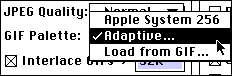
* Apple System 256 provides fast image conversion and a consistent palette for all your images. This may not be the best color palette for all platforms.
* Adaptive provides the best palette within the number of colors you specify (between 2 and 256) for any given image. When you specify adaptive color palettes, BeyondPress requires more RAM and takes longer to export images.
* Load from GIF lets you select a single color palette for all your images. For example, you can use the palette of one image for all other images in your document.
 Setting Image Preferences, Part II | Changing Image Format and Color Palette
SELECT A TOPIC:
Setting Image Preferences, Part I
Setting Image Preferences, Part II
Specifying Image Format and Color Palette
Changing Image Format and Color Palette
Controlling Size, Scale, and Cropping
Controlling Text Runaround and Applying Borders
Changing Text Runaround and Borders
Changing the Transparency of GIFs