
SELECT A BOOK:


SELECT A CHAPTER:
Controlling Size, Scale, and Cropping
BeyondPress gives you control over the default scale of images, and allows you to resize, scale, and crop individual images.
To specify image scale preferences
1 Open the Image Preferences dialog box (click Preferences  on the Document Content palette, then click Image).
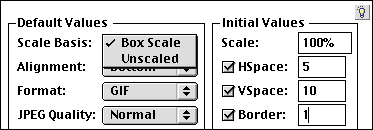
2 To specify the default size of exported images, choose an option from the Scale Basis pop-up menu (Default Values area). Choose Box Scale to start with images that are scaled as they are in the QuarkXPress document. Choose Unscaled to start with the unscaled image.
3 To scale images up or down from the Scale Basis size, enter a value between 1 and 400 percent in the Scale field (Initial Values area). This value determines the scale applied to images when they are added to the Content List.
4 Click OK to close BeyondPress Preferences and save changes.
To resize, scale, and crop an image
1 Select an Image  in the Content List and click Modify in the HTML column.
In the Image Settings dialog box, the Scale Basis pop-up menu setting and Horizontal and Vertical fields reflect the current defaults in Image Preferences. The Scale Basis default setting in Image Settings, displayed in italics, will update if you change Image Preferences. If you change the Scale Basis setting, changes to Image Preferences will no longer affect the setting.
Changes to the Scale setting in Image Preferences will not affect the values in the Horizontal and Vertical fields (for images that have already been added to the Content List). The Scale value in Image Preferences only determines the scale applied to images when they are added to the Content List.
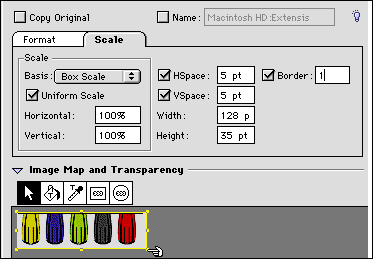
2 To crop the image, select the Pointer tool  (the first tool on the tool bar at left). Drag the handles on the image's bounding box to crop out unwanted portions of the image.
Tip: To see more of a large image, draw out the window in the lower right corner of the Image Settings dialog box.
3 To resize the image, enter percent values in the Horizontal and Vertical fields. To keep the horizontal and vertical scaling proportionate, check Uniform Scale. You can also use the Width and Height fields to specify absolute values; the picture will be scaled accordingly. Enter values in any measurement system supported by QuarkXPress.
4 Click OK to close Image Settings.
 Changing Image Format, Color Palette | Controlling Text Runaround and Applying Borders
SELECT A TOPIC:
Setting Image Preferences, Part I
Setting Image Preferences, Part II
Specifying Image Format and Color Palette
Changing Image Format and Color Palette
Controlling Size, Scale, and Cropping
Controlling Text Runaround and Applying Borders
Changing Text Runaround and Borders
Changing the Transparency of GIFs