
SELECT A BOOK:


SELECT A CHAPTER:
Changing Text Runaround and Borders
1 Select an Image  in the Content List and click Modify in the HTML column.
In the Image Settings dialog box, the Alignment pop-up menu setting reflects the current default in Image Preferences. The default setting is displayed in italics; if you click on the Alignment pop-up menu, the word "Default" is added to the default setting. Any options in Image Settings that are set to defaults will reflect changes made to Image Preferences.
In the Image Settings dialog box, the HSpace, VSpace, and Border fields reflect the Image Preferences that were set when the image was added to the Content List. Changes to the HSpace, VSpace, and Border settings in Image Preferences will not affect corresponding values in the Image Settings dialog box (for images that have already been added to the Content List).
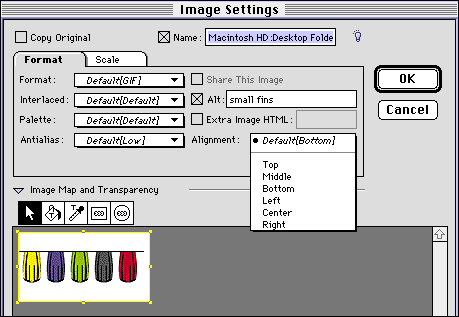
2 Choose another option from the Alignment pop-up menu or change the values in the HSpace, VSpace, and Border fields.
3 Click OK to close Image Settings.
 Controlling Text Runaround and Applying Borders | Changing the Transparency of GIFs
SELECT A TOPIC:
Setting Image Preferences, Part I
Setting Image Preferences, Part II
Specifying Image Format and Color Palette
Changing Image Format and Color Palette
Controlling Size, Scale, and Cropping
Controlling Text Runaround and Applying Borders
Changing Text Runaround and Borders
Changing the Transparency of GIFs