
SELECT A BOOK:


SELECT A CHAPTER:
Importing and Using JPEG and GIF Files
QuarkXPress ships with an import filter for JPEG files, and when BeyondPress is installed, you can drag GIF files into QuarkXPress as well.
By default, BeyondPress creates image files from the picture previews in QuarkXPress. You can choose to use the original JPEG and GIF files that you import rather than having BeyondPress create new ones.
When you use original picture files, BeyondPress cannot modify the image's Format, Palette, Scale, Width, Height, Cropping, or Transparency.
You can create image maps from original picture files. BeyondPress can use the Alignment, HSpace, VSpace, Border, Alt, and Extra Image HTML information from the Image Settings dialog box.
1 Select an Image  in the Content List and click Modify in the HTML column.
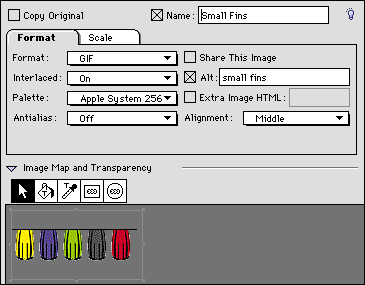
2 Check Copy Original and select Scale from the tab menu.
3 Make sure the HSpace, VSpace, Border, settings are correct.
4 Select Format from the tab menu.
5 Make sure the Alignment, Alt, and Extra Image HTML settings are correct.
6 Click OK to close Image Settings.
 Specifying HTML Tags and Replacement Text | Creating Hyperlinks and Image Maps
SELECT A TOPIC:
Setting Image Preferences, Part I
Setting Image Preferences, Part II
Specifying Image Format and Color Palette
Changing Image Format and Color Palette
Controlling Size, Scale, and Cropping
Controlling Text Runaround and Applying Borders
Changing Text Runaround and Borders
Changing the Transparency of GIFs
Specifying HTML Tags and Replacement Text
Importing and Using JPEG and GIF Files