

SELECT A BOOK:


SELECT A CHAPTER:
Converting Text to an Image
There are times when you'll want to convert text to an image to maintain typography and box background. Examples are:
* Stylized logos not saved as an image.
* Text in an unusual font that most users may not have installed in their systems.
* Text that is rotated, skewed, or flipped.
* Text that is scaled horizontally or vertically.
* Text that has significant kerning or tracking applied.
* Baseline-shifted text.
To convert text to an image:
1 Select a Text Chain  or Anchored Text (shown as an indented Text Chain) in the Content List. In general, select a text element that contains only a few words, not an entire story. (You can't convert a Text Range to an image.)
2 Click the HTML pop-up menu and choose As Image.
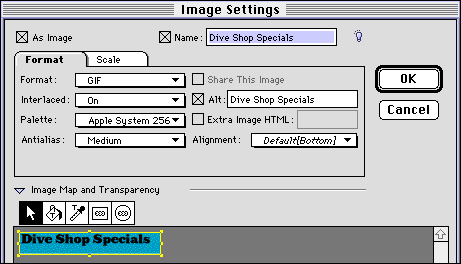
3 Image Settings opens so you can format the image (see Specifying Image Format and Color Palette). When you've finished formatting the image, click OK.
To ensure the best appearance of text converted to an image, we recommend that you specify antialiasing.
If the text in the QuarkXPress document is edited, the text converted to an image will be updated automatically.
Notes: If you change your mind and want to convert the image back to text, click the HTML pop-up menu and choose As Text, or uncheck As Image in the Image Settings window.


SELECT A TOPIC:
Cascading Style Sheets and Font Names Tags
Overriding Style Sheet Mapping
Converting Text to an Image