
SELECT A BOOK:


HTML Pane of the Elements Palette
Open the HTML pane by selecting the HTML tab of the Elements palette.
BeyondPress gives you seven default HTML items that you can add to Web pages. You can also create HTML items by dragging Custom  into the HTML Master Element List or onto a QuarkXPress page.
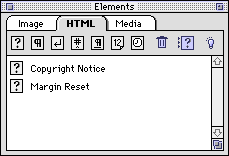
HTML Pane Buttons
Drag this icon To
 Custom Insert a Master Element, HTML source, or text
 Paragraph Insert a paragraph return (Return in QuarkXPress, <P> in HTML)
 Line Break Insert a line break (Shift-Return in QuarkXPress, <BR> in HTML)
 Space Insert a space
 H. Rule Insert a horizontal rule
 | Date | Insert the export date as specified in Export Preferences |
 | Time | Insert the export time as specified in Export Preferences |
Margin Reset 
This Master Element lets you break text around a photo or image.
Trash 
Select an item in the HTML Master Element List you want to delete, then click the Trash button.
Import Master Elements 
Click this button to import Master Elements you've created for other Web pages.
For more information, click a topic:
Authoring Mode
* Creating Custom and Master Elements
* Using Master and Custom Elements
Conversion Mode
* Creating Custom and Master Elements
* Using Master and Custom Elements
 Image Pane of the Elements Palette | Media Pane of the Elements Palette
SELECT A CHAPTER:
SELECT A TOPIC:
Elements Palette: Introduction
Image Pane of the Elements Palette
HTML Pane of the Elements Palette